

Download O O DiskImage – Free Disk Imaging Tool for Windows
O O DiskImage is a lightweight, free utility designed to make disk imaging as simple as possible for everyday Windows users. While professional solutions such as Norton Ghost or Acronis True Image pack a massive set of options, they also come with steep learning curves that can intimidate beginners. O O DiskImage strips away the complexity and focuses on two core actions – creating a full‑system image and, with a paid upgrade, restoring that image to a single drive or the entire computer.
The program captures every sector of your selected drive, preserving the operating system, installed applications, settings, and personal files in a single *.iso‑like image file. Because the free edition can only create images, it is an excellent starting point for users who want to test the backup workflow before committing to a paid version. The interface is clean, the wizard‑style steps are clearly labeled, and the built‑in integrity check ensures that the image you produce is reliable.
In short, O O DiskImage delivers a secure, straightforward backup experience that helps protect data without overwhelming the user with unnecessary features.
Key Features of O O DiskImage
- Full system imaging – captures OS, applications, settings, and user data in one file.
- Selective drive backup – choose individual partitions or whole disks.
- Compression options – reduce image size without sacrificing restoration speed.
- Integrity verification – built‑in checksum validation to confirm a clean backup.
- Scheduled backups – set recurring image creation tasks (available in Professional edition).
- Incremental updates – only new or changed data is added to subsequent images (Professional).
- Boot‑able rescue media creator – generate a USB or CD that can launch the recovery environment.
- Multi‑language support – English, German, French, Spanish, and more.
- Free for personal use – no hidden fees or trial expirations.
- Simple upgrade path – move to Professional, Workstation, or Server editions for advanced restore features.
Installation & Usage Instructions
Getting O O DiskImage up and running takes just a few clicks. Begin by downloading the installer from the official O O website. The file is a compact .exe package (approximately 12 MB) that works on any supported Windows version.
After the download completes, double‑click the installer, accept the license agreement, and follow the on‑screen prompts. The default installation path (C:\Program Files\O O DiskImage) works for most users, but you can customize it if needed. Once installed, launch the program from the Start menu or desktop shortcut.
Creating Your First Disk Image
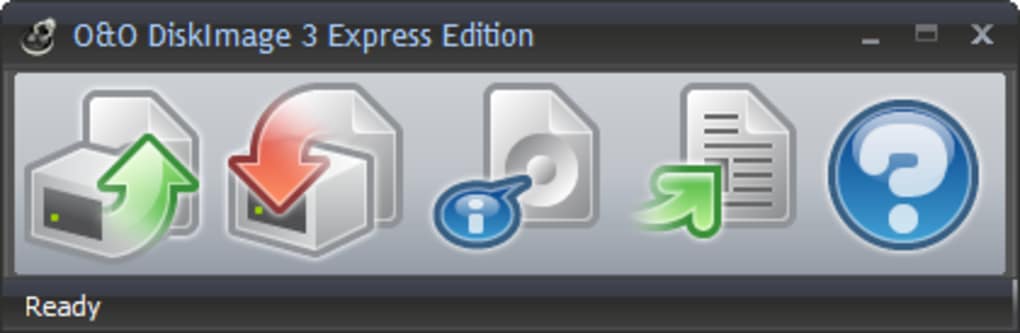
The moment you open O O DiskImage, you’ll be greeted by a clean dashboard with two large buttons: Create Image and Restore Image. Click Create Image to start the wizard. First, select the source drive you wish to back up – you can pick an entire disk (e.g., C:) or a specific partition (e.g., C:\System).
Next, choose a destination folder where the image file will be saved; it’s wise to store the image on an external drive or a separate internal volume to protect against hardware failure. The wizard then offers compression levels (None, Medium, High). Higher compression reduces file size but takes longer to process.
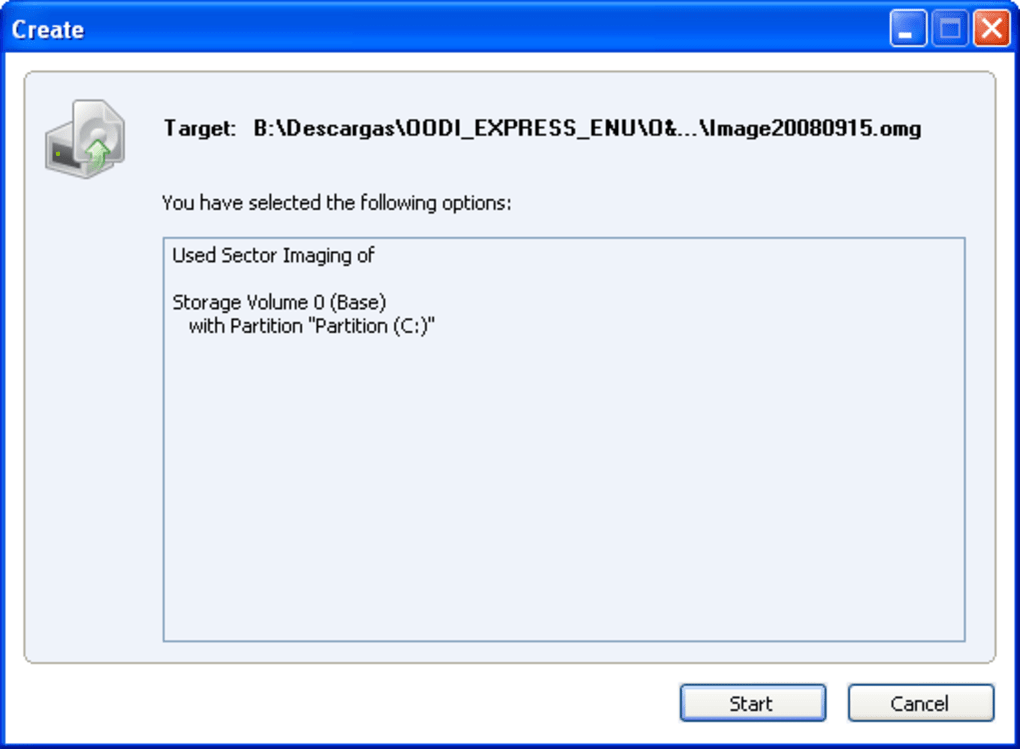
After confirming your choices, click Start. The program will display a progress bar, estimated time remaining, and real‑time read/write speeds. When the process finishes, a summary screen shows the image size and offers to open the destination folder.
Restoring from an Image (Professional Upgrade Required)
While the free edition cannot perform restores, the workflow is identical in the paid versions. After purchasing and installing the Professional edition, you’ll gain access to the Restore Image button. Select the previously created image file, then choose the target drive (the same drive you imaged or a new one).
The software will automatically detect the original partition layout and give you the option to overwrite or resize partitions. A final confirmation step ensures you understand that all data on the target drive will be erased. Click Restore, watch the progress bar, and when the operation completes, you’ll have a fully functional clone of your original system ready to boot.
Compatibility and System Requirements
O O DiskImage is built for Windows environments ranging from legacy Windows XP (32‑bit) to the latest Windows 11 (64‑bit). The official supported versions include:
- Windows XP (SP3) – 32‑bit
- Windows Vista – 32‑bit & 64‑bit
- Windows 7 – 32‑bit & 64‑bit
- Windows 8 / 8.1 – 32‑bit & 64‑bit
- Windows 10 – 64‑bit (all major updates)
- Windows 11 – 64‑bit (recommended)
Minimum hardware requirements are modest: a 1 GHz processor, 512 MB RAM, and at least 200 MB of free disk space for the program itself. Because the software reads and writes raw disk sectors, it benefits from faster storage (SSD or 7200 RPM HDD) to reduce imaging time. The tool also works with external USB drives, SATA, and even legacy IDE devices, making it versatile for both modern desktops and older machines that still need a reliable backup solution.
Pros and Cons
Pros
- Ease of use: Intuitive wizard with only two main functions.
- Free for imaging: No cost for creating backups, perfect for home users.
- Full‑system capture: Includes OS, applications, and hidden system partitions.
- Compression & verification: Reduces file size while ensuring image integrity.
- Portable rescue media: Create bootable USB/CD for emergency restores.
- Low system impact: Runs quietly in the background without high CPU spikes.
- Multi‑language UI: Accessible to non‑English speakers.
Cons
- Restore functionality requires a paid upgrade.
- No built‑in cloud backup integration (images must be stored locally or on external media).
- Limited scheduling options in the free version.
- Only Windows support – no macOS, Linux, Android, or iOS versions.
- Advanced features such as incremental backups are locked behind the Professional tier.
Frequently Asked Questions
Is O O DiskImage really free?
Yes, the base edition of O O DiskImage is completely free for personal use. You can create unlimited disk images without any time‑limited trial or hidden fees. The only paid component is the upgrade that adds restore capabilities and advanced features.
Can I use O O DiskImage on a Mac or Linux computer?
No. O O DiskImage is a Windows‑only application. macOS and Linux users will need to look for alternative tools such as Carbon Copy Cloner (Mac) or Clonezilla (Linux).
How secure are the image files created by O O DiskImage?
The images are stored as raw sector copies, which means they contain an exact replica of your drive. While the files themselves are not encrypted by default, you can manually encrypt the backup folder or store the image on an encrypted external drive for added security.
What happens if the imaging process is interrupted?
If the process stops unexpectedly (e.g., power loss), O O DiskImage will flag the image as incomplete during the integrity check. You can simply restart the imaging operation; the software will overwrite the partial file with a fresh, complete image.
Do I need to uninstall the free version before upgrading to Professional?
No. The upgrade is delivered as an add‑on that activates additional menu items and features within the same installation. Your existing images remain fully compatible, and you can start restoring immediately after the license key is entered.
Conclusion – Should You Download O O DiskImage?
For anyone who needs a reliable, no‑frills solution to back up a Windows PC, O O DiskImage hits the sweet spot between functionality and simplicity. Its free edition lets you create full‑system images with just a few clicks, and the built‑in integrity checks give you confidence that your data is safely captured. While the lack of native restore capabilities in the free version may seem limiting, the affordable upgrade path provides a full‑featured restoration suite without forcing you into a costly enterprise product. If you’re a home user, a small‑office tech, or a beginner looking to dip your toes into disk imaging, downloading O O DiskImage today is a sensible first step toward protecting your digital life.
O O DiskImage provides a surprisingly robust feature set for a free tool. Its streamlined workflow makes imaging simple for beginners, while the option to upgrade unlocks powerful restoration capabilities. The only drawback is that you must purchase the Professional edition to actually restore a backup, but even the free version is invaluable for creating reliable system snapshots.







